How to Standardise Email Signatures Across a Company, Without Manual Work
Why company-wide email signatures become inconsistent
Most companies start with good intentions. Marketing creates a professional email signature template. IT sends instructions to staff. Employees are asked to copy and paste the design into Outlook, Gmail or another email client.
At first, it may work. Then the company grows. New employees join. Job titles change. Offices move. Departments request different banners. A legal disclaimer is updated. Some people use Outlook desktop. Others use webmail. Senior managers reply from mobile. Remote workers use different devices.
Over time, consistency disappears. The company no longer has one email signature standard. It has dozens of small variations.
The answer is not more instructions. The answer is removing manual work from the process.
What standardisation really means
Standardising email signatures does not mean every employee must have an identical footer. It means every signature follows approved rules.
Those rules may include:
- Brand-approved fonts, colours and spacing
- Correct logo usage
- Approved contact fields
- Accurate job titles and phone numbers
- Department-specific banners
- Region-specific legal details
- Consistent social media icons
- Mobile-friendly formatting
- Approved disclaimers
A standardised approach allows controlled variation. For example, the sales team may need a demo booking link, while HR may need a careers campaign banner. The finance team may need legal entity details. The leadership team may need a different layout. The key is that every version is approved, consistent and centrally managed.
Step 1: Audit your current signatures
Before creating a new system, review what is already being sent. Ask a sample of employees across departments and devices to send test emails. Include desktop, webmail and mobile users.
Check for:
- Old logos
- Broken links
- Incorrect phone numbers
- Missing job titles
- Poor spacing
- Different font sizes
- Unapproved banners
- Missing disclaimers
- Images that do not load
- Mobile formatting problems
This audit helps you understand the scale of the issue. It also gives IT, marketing and leadership a clear reason to support a centralised approach.
Step 2: Define the signature architecture
A company-wide signature project needs structure. Start by deciding which elements are mandatory, optional or conditional.
Mandatory elements might include:
- Full name
- Job title
- Company name
- Main website
- Primary phone number
- Legal company details
Optional elements might include:
- Department phone number
- LinkedIn profile
- Pronouns
- Booking link
- Certifications
Conditional elements might include:
- Regional office address
- Country-specific disclaimer
- Department-specific campaign banner
- Brand-specific logo
- Language-specific footer
This architecture avoids future confusion. When a new department asks for a signature variation, you can decide where it fits rather than creating an unplanned one-off template.
Step 3: Clean your employee data
Email signature automation is only as good as the data behind it. If names, job titles, phone numbers or departments are wrong in your directory, those errors will appear in signatures.
Before rollout, review your directory fields in Microsoft 365, Active Directory, Exchange or Google Workspace. Pay particular attention to:
- Display name formatting
- Job titles
- Department names
- Office locations
- Phone numbers
- Mobile numbers
- Manager or team fields
- Group membership
Data quality is often the hidden barrier to standardisation. Once directory data is clean, signatures can update automatically when an employee changes role or location.
Step 4: Create approved templates
Next, create signature templates that reflect the brand and support different business needs. Avoid overloading the design. A good corporate signature is clear, readable and purposeful.
Use a hierarchy that makes the sender easy to identify. The recipient should see the person’s name, role, company and contact route without effort. Keep logos crisp, links tested and banners purposeful.
For multi-brand or multi-location companies, create templates for each approved variation. Do not ask employees to decide which version they should use. The system should assign the right template based on rules.
Step 5: Set rules by department, group or location
Manual signature management fails because every employee becomes responsible for implementation. Rule-based deployment fixes that.
A centralised system can apply signatures based on:
- Department
- Office location
- Country
- Domain
- Brand
- Seniority
- Google Group
- Microsoft 365 group
- Active Directory attribute
For example, UK employees can receive UK company details, sales can receive a demo banner, recruitment can receive a careers banner and customer success can receive a support resource link.
Step 6: Apply signatures without user-side installation
The best way to remove manual work is to avoid local user setup. Server-side signature deployment applies the signature automatically, so employees do not need to copy, paste, install or update anything.
This matters because employees use different devices and clients. Even when they follow instructions, formatting can change between Outlook, Gmail, Apple Mail and mobile apps. Central deployment reduces those inconsistencies.
SIGNandGO is designed for centralised deployment across Microsoft 365, Exchange and Google Workspace. It allows administrators to manage signatures from one platform and apply updates automatically across users.
Step 7: Give marketing controlled access
Marketing should not need to raise an IT ticket every time a campaign banner changes. At the same time, marketing should not have unrestricted access to email infrastructure.
Role-based access solves this. IT controls the platform setup and mail environment. Marketing manages approved banners, campaign links and creative assets. Compliance or management approves legal text. HR maintains employee data.
This creates a practical workflow where each team controls the right part of the process.
Step 8: Schedule campaign banners
Company email traffic can support marketing activity when used carefully. Signature banners can promote webinars, reports, events, product pages, case studies or seasonal messages.
The key is scheduling. A banner should have a start date, an end date and a clear landing page. It should not rely on employees remembering to remove it later.
Use UTM-tagged links so marketing can measure clicks in analytics. Over time, you can test which messages work best by department, region or campaign type.
Step 9: Test before full rollout
Before launching company-wide, test with a small group. Include users from different departments, devices, seniority levels and email clients.
Check:
- Desktop rendering
- Mobile rendering
- Replies and forwards
- Dark mode behaviour
- Image loading
- Link accuracy
- Disclaimer placement
- Banner tracking
- Directory field accuracy
Pilot testing prevents avoidable complaints after launch.
Step 10: Maintain a governance process
Standardisation is not a one-time project. It needs ongoing ownership. Create a clear process for:
- New starter signatures
- Leaver removal
- Job title changes
- Campaign banner updates
- Legal disclaimer updates
- Brand refreshes
- New locations or domains
- Template reviews
With centralised management, these changes become quick, controlled updates rather than company-wide manual tasks.
A better way to keep every signature consistent
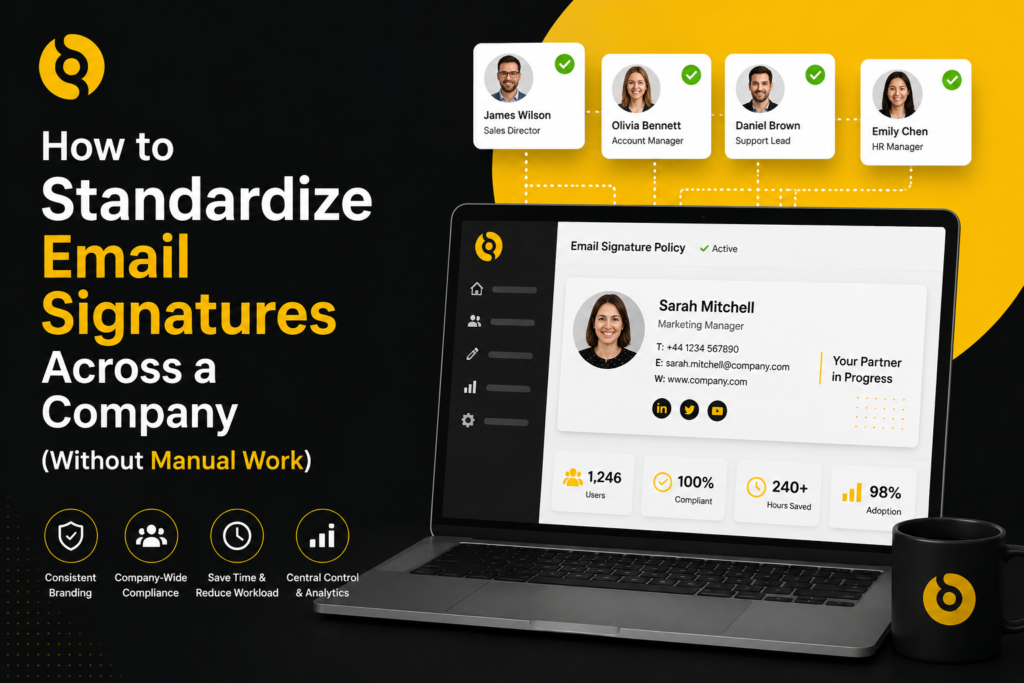
To standardise email signatures across a company, do not ask employees to manage signatures themselves. Build a central system based on clean data, approved templates, rule-based deployment and shared ownership between IT, marketing, HR and compliance.
The result is a better brand experience, fewer support requests and more control over every business email sent by the organisation.
SIGNandGO gives companies the tools to manage this process centrally, with support for Microsoft 365, Exchange and Google Workspace. For growing businesses, that means signature consistency without the manual work.